First–Thank you to everyone who added their input in the comments section of last week’s Blogging 101 post! It was fun to read so many thoughts about what makes a great blog. Now let’s get to this week’s question!

This week’s question:
Q: How do I add a favicon to my blogger blog?
A: Let’s first take a look at what a favicon is! A favicon is like a logo–it’s the little image that shows up next to a website’s address. On blogger, you’ll see the orange and white “B”.

So let’s take a look at how to change your blog’s favicon to something more fun. It’s truly a great way to make your blog standout!
Step 1:
First we need to create a small image that we can turn into a favicon. To do this, you’ll need some sort of editing program. If you don’t have a purchased program such as Photoshop, there are many free options that will work great for our purposes! My personal favorite is Gimp, but you can use anything from Picnik to your basic Paint program.
The image you create needs to be 15X15 pixels. Keep in mind that this is very small, so consider creating something simple!
Step 2:
Once you’ve created an image that you’re happy with, save it to your computer as either a .jpg, .png, or .gif file.
Step 3:
After you’ve saved your image, we need to find a favicon generator on the web. I suggest going to http://iconj.com/.
Step 4:
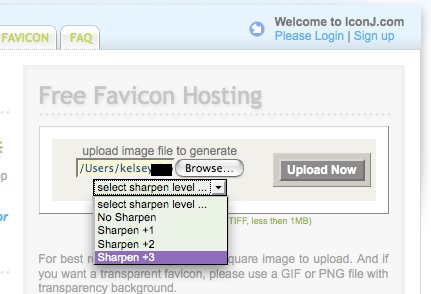
Once there, find where it says “Free Favicon Hosting”. Click on “Browse” to find and select the image you just saved to your computer. After you’ve selected your image, select a sharpen level of “Sharpen +3″ as I’ve shown here in purple.
Step 4:
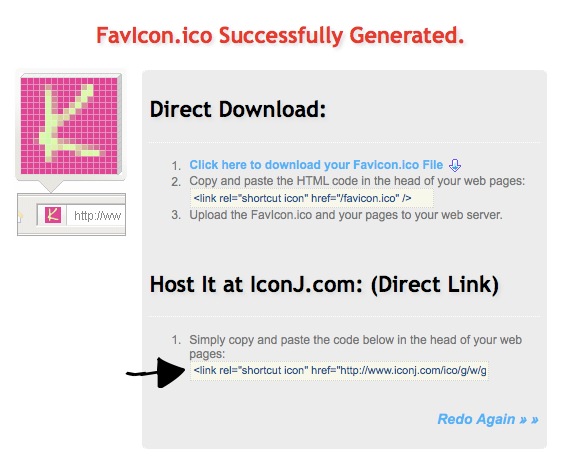
Once you’ve selected the sharpen level, click on “Upload Now”. You will then see a page that says you’ve uploaded your image successfully. On this page, highlight and copy the link from the “Direct Link” section.
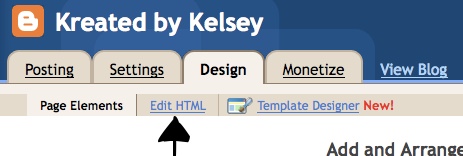
Go to your blogger dashboard and select “Design”.
Under the design tab, select “Edit HTML”.
*NOTE: I would strongly recommend backing up your template before completing the next steps!*
Once in your HTML section, search the page for the following: </head>
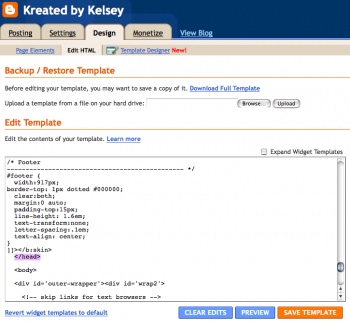
Place the code you copied from the favicon site directly after the </head> code you just searched for.
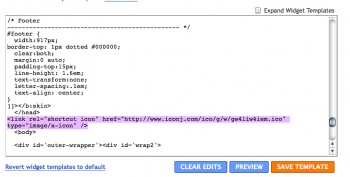
Save your template and then take a look at your blog. If your favicon doesn’t show up right away, try refreshing the page. Now instead of the standard logo, your blog should have a cute favicon of it’s own!
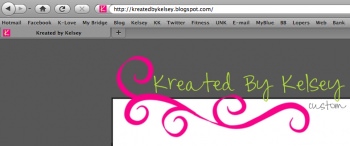
Keep in mind that while favicons show up in most browsers, they will not appear in all of them. Good luck everyone!
Do you have a question you want me to answer? Leave a comment! :)


Comments
oh.my.gosh!
you are AWESOME.
thank you gobs & gobs!
Have you had issues with favicons not showing up in Internet Explorer?
I have a favicon, but I have to use Safari, for example, before I can see it in the broswer…..
Is there a solution for that?
As far as I know, there is no solution. Internet Explorer is rather notorious for issues like this. I know that many people are simply steering clear of IE these days, so hopefully the majority of your readers will use browsers that it shows up on!
Thank you so much for the information, you are awesome!
You are the best! Thanks so much
Thank you goddess of the internet and html. You made that painless and easy and I am not even cursing!
Hi! This is great, but do you know if it works with the Firefox browser? I followed your directions, but it is not showing up. Such a cute idea too!! =)
It should show up on Firefox! If you are still not seeing it, email me at kreatedbykelsey@hotmail.com and I can try to help you!
Didn’t even realize such customization was possible – wow! Thanks for the simple instructions!
awesome! Thanks so much! I actually was able to do it {right} on the 1st try!! Tip Junkie, you are awesome!
Awesome! I just did a favicon for my blog and it turned out great! The directions were so easy to follow! Thank you bunches!
I used picnik to resize my image and I used the recommended FavIcon Labs website to create a free favicon.
Great tip! Much appreciated!
Kara @ Mine for the Making
Woot! I’ve been wanting to do this. Thanks for the great tutorial. I’ve now got a great little favicon!
Carolina
Wow! Thank you so much for sharing!!
http://homelifestyledesign.blogspot.com
Thanks for that tutorial – I tried to make my own favicon. (Did not even know what a favicon is before!) But I am having trouble … problem is in my html code there is no
There is only
And if I put the copied bit behind that nothing happens at all …
Do you know why there is no in my code and what I could do to still add a favicon???
And thanks again for your help – I love the whole series!!!
Hm, for some reason I can’t find the html-code where I should put the link. It does not exist in my code. Any suggestions?
(And I can not post the code in the comments … it does not show up …)
Hi Miss Muffin! Can you email me at kreatedbykelsey@hotmail.com? I will try to take a look and see if I can help you. :)
Thanks so much! That was super easy!!
Kelsey, you’re a star!!!! It worked perfectly. Thank you so much this was just what I had asked for last week. Check it out http://robingallagher.blogspot.com
It looks perfect! Thanks for the great question. :)
WOW! I’ve been wanting to learn this for some time! Thanks for sharing!!
Thanks so much for this. I think it worked! I am totally illiterate when it comes to computers. I dont even have a proper blog header because I dont have a clue how to do it!! Thanks again!! x
Hi,
so I did it, but didn’t like it. How can I redo it? I have the new image I like already, I’m just not sure where to put the code, I put it where you said I should but the old one keeps coming up instead.
thanks sOOO much by the way, this is awesome~
Jacinda
It might take a day or so to register the change. If it still doesn’t work, email me at kreatedbykelsey@hotmail.com! :)
Thanks so much for the tip; I’m loving my cute little purple button for my favicon now!!!
Thank you for sharing! Its funny how its these little things that bring such joy, and make me smile when I go to my blog!
Carole
http://frogbellysoup.blogspot.com
Favicon created and finally figured out how to install it to be viewed. (I had to insert the code just before instead of after .) Thank you, thank you! But it doesn’t seem to be showing up on a blog listing at the side, it’s just the usual blogger B, even when add it to my own blog listing. How can I fix this?
Then to get to work on a new header. The old one doesn’t fit the new template.
Thanks again. I’ve always wanted to do something like this.
Thank you! This was super easy!
You’re awesome!
Thanks again!
-Meredith @ meredith and maggie
Thank you for the great post! That was so quick and easy!
THANK YOU!
I am just getting started with this blog and was so excited to read this post… along with you other tutorials!
Very good, thanks for this tutorial.
David recently posted..5 ressources pour faire votre favicon facilement
That’s understandable that money can make us free. But what to do if someone doesn’t have money? The one way is to try to get the loans or just financial loan.
I guess that to get the credit loans from banks you should have a great reason. Nevertheless, once I’ve got a sba loan, because I was willing to buy a car.
Don’t have a lot of money to buy some real estate? Do not worry, because it is possible to receive the credit loans to work out all the problems. Thus get a collateral loan to buy all you want.