Welcome to Week 3 of the Blogging 101 series! This week’s question is geared specifically towards blogs through blogger.com, so I apologize in advance to those who have blogs hosted through other websites.
This week’s question:
Q: What are Blogger pages and how do you use them?
A: I received a lot of questions about this last week and often have clients who ask about this feature as well. Blogger pages is a new feature that is actually very useful. These pages are great to include on your navigation bars—which I gave a tutorial on last week. You can see that entire tutorial here.
Today we’re going to start from the very beginning. :) On your Blogger dashboard, click on the word “Design”.
From there we need to select the “Posting” tab.
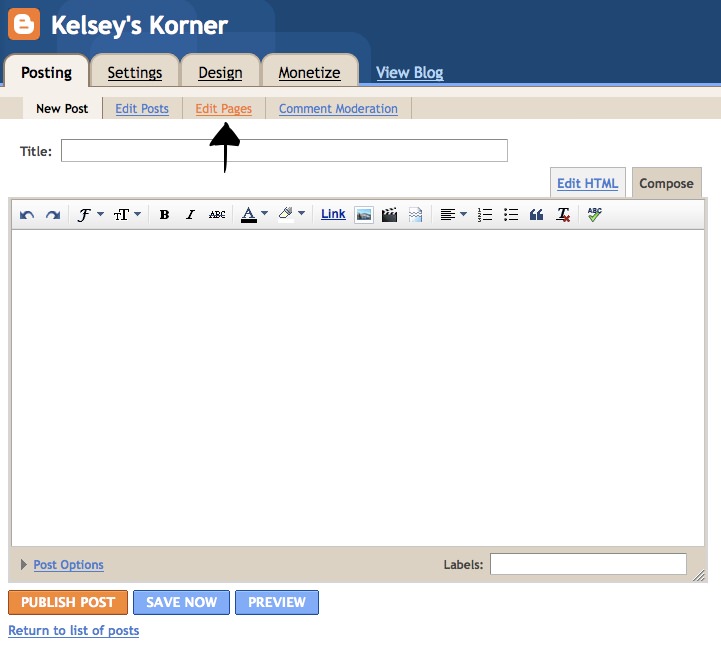
Clicking on the “Posting tab” will take you to the place where you would normally write a post. Instead of typing here, we are going to click over to the “Edit Pages” link.
Once you’re in the pages section, simply click on “New Page”.
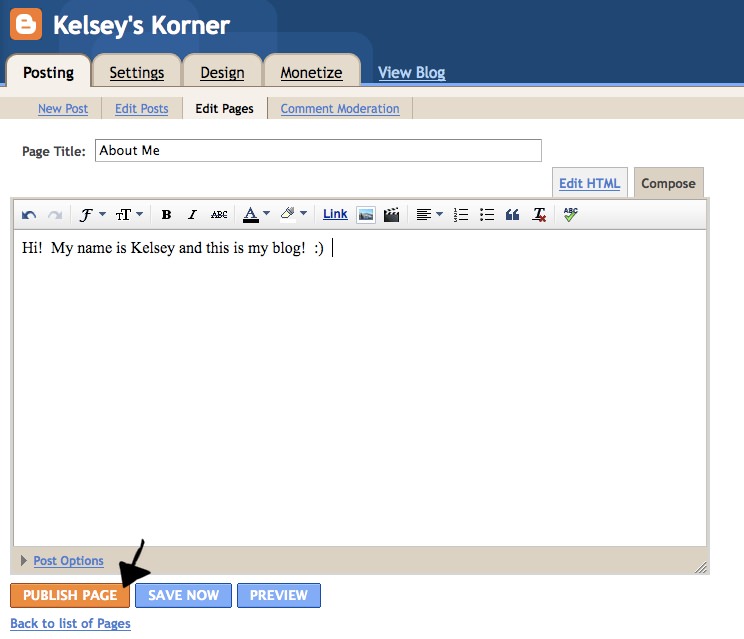
Here you will see a screen that is identical to your standard posting screen. You are now free to write what you want on your page. Simply title the page and fill in the section just as you would a post.
After you’ve finished filling it out, click “Publish Page”.
After publishing, you will come to a screen that asks you how you would like your pages to appear.
What you select depends on how you want to use your pages. If you select either “Blog sidebar” or “Blog tabs” your pages will automatically be placed on your blog. Here’s an example of what happens if I select “Blog tabs”.
Now you may be wondering how this is different from the navigation bar I helped you create last week. There are two main differences. First, when Blogger adds the pages, the links are automatically left aligned. I personally prefer them to be centered. I realize that this may just be the designer in me talking. :) Secondly, when Blogger adds your pages for you, you are not able to add any other links. This means that you cannot add a link to your photography business, your favorite store, or your Facebook page like you would be able to do with the navigation bar we created last week. So on that note, let’s go back and take a look at what to do if you want to use these pages on your own navigation bar.
If you decide that you don’t want Blogger to automatically post your links and you want to do it yourself, you need to select the “No gadget” option. Keep in mind that you will need to select this option each and every time that you create a new page or edit an existing one.
After selecting “No gadget” and publishing your page, you will see a screen that tells you that your page was published successfully. Now click on “View Page”.
Once you’re viewing your new page, simply highlight and copy the entire link to the page as I have shown here in purple…
Finally, go back to the code from the navigation bar tutorial and paste the link you just copied in the correct place. That’s it! You now have a couple of different options on how to use this great new Blogger feature.
Do you have another question you want answered? Leave a comment! :)


Comments
Great tips and instructions…even I understood them! Luckily, for now my daughter manages all that stuff for me, but one day….
I did it! Thanks Laurie!
Love your step by step directions! Great tutorial!
VERY! VERY! VERY! good tutorial! Thanks so much! I’ve added pages to my blog now! :)
Thanks I have a terrible problem that when Ipost the txt will sometimes have lg spaces that weren’t there when I typed it in the orginal box – why is that and how can I correct that?
Hi Jo! Sometimes this happens to me on Blogger as well. Try clicking on the “Edit HTML” tab and deleting all of the extra spaces you see there. If it still isn’t working, email me at kreatedbykelsey@hotmail.com and I can help you further! :)
I have a question! How do you guest post for someone or have someone guest post for you without giving out your passwords?
Thanks!
Go to:
-Settings
-Permissions
-Click the blue “Add Authors” button
-Type in the person’s email address and click “Invite”
Once they have accepted the invitation, they should be able to post! I know this was fast, so if you still have questions, email me at kreatedbykelsey@hotmail.com! :)
I have a question for you. Whenever I add a header from a template website it is always small, the header I have now is large because the photo I used is larger, how do I make a simple header larger, whenever I had my blog template professionaly made it was a large header but when I add one from another site on my own, it’s small, I know crazy question! ha
Hi Stacy! I think I need to know what site you’re using to create your header (or what you mean by a template website). I should be able to help you if I can better understand what you mean! You can email me at kreatedbykelsey@hotmail.com!
How do you change font/color/size of your text when you are creating a post in blogger?
Good question! I’ll add this to my list!
how do you put the picture of your blog on your post?
It’s called a screen shot. On my mac I simply press and hold apple + shift + 3 and it takes a picture of what’s on my screen! If you have Microsoft Windows, I believe you press and hold ctrl + Prnt Scrn. It is my understanding that this copies the image for you, so you will then need to “paste” it somewhere–like on your paint program, or to your blog page. If you don’t have one of these operating systems, try searching “screen shot in (your operating system)” and you should be able to find something!
What a great tutorial! I’ve been meaning to start a blog and this really helps!!
Can you tell me how to make my post title bigger? Thanks
hello,
i am new to the blogging world. i did a page and put in some info and pictures. the only problem is that two of the pictures are duplicated at the bottom of the page and i can not delete theme. please help.
great tips.
Hi Kelsey! I have a blog and I’m starting a VERY small store. I’m thinking of adding a page to my blog called “store” where I will display inventory and have a PaylPal button etc…. I’m confused about the not be able to use links thing you were mentioning. Can you give an example? I want to be sure this is the way for me to go. THANKS!!!
Eek, that’s brilliant!! Thank you so much :D
AlyceB recently posted..Blog Roll Call
So it is me again, because I posted it as code above and it worked in my message to you, but does not work on my actual blog. Weird!
Here is the code again so you can see what I am talking about:
“Home Reviews contact”
but it shows up as:
“Home contact”
Kasha recently posted..Jessie’s Board
ugh. I give up
Kasha recently posted..Jessie’s Board
According to my exploration, thousands of people in the world receive the loan at various banks. Thence, there’s a good possibility to find a short term loan in any country.
Hi! Great tutorials!! I am a little stumped now though, it looks like blogger has removed the “no gadget” option. I was going to create my own header bar like in your other tutorial, but now I can’t seem to figure out how to do that. Is there any way to use “pages” to create the other locations for content but not actually publish them on the pages widget with the new changes?
Thank you for sharing this article!